Install Industry Classification Codes
Overview
IndustryComplete requires an industry classification dataset to function.
Note: This step requires the IndustryComplete Admin User Permission Set.
Installation Steps
- Open the App Launcher.
- Search for and select IndustryComplete Administration.
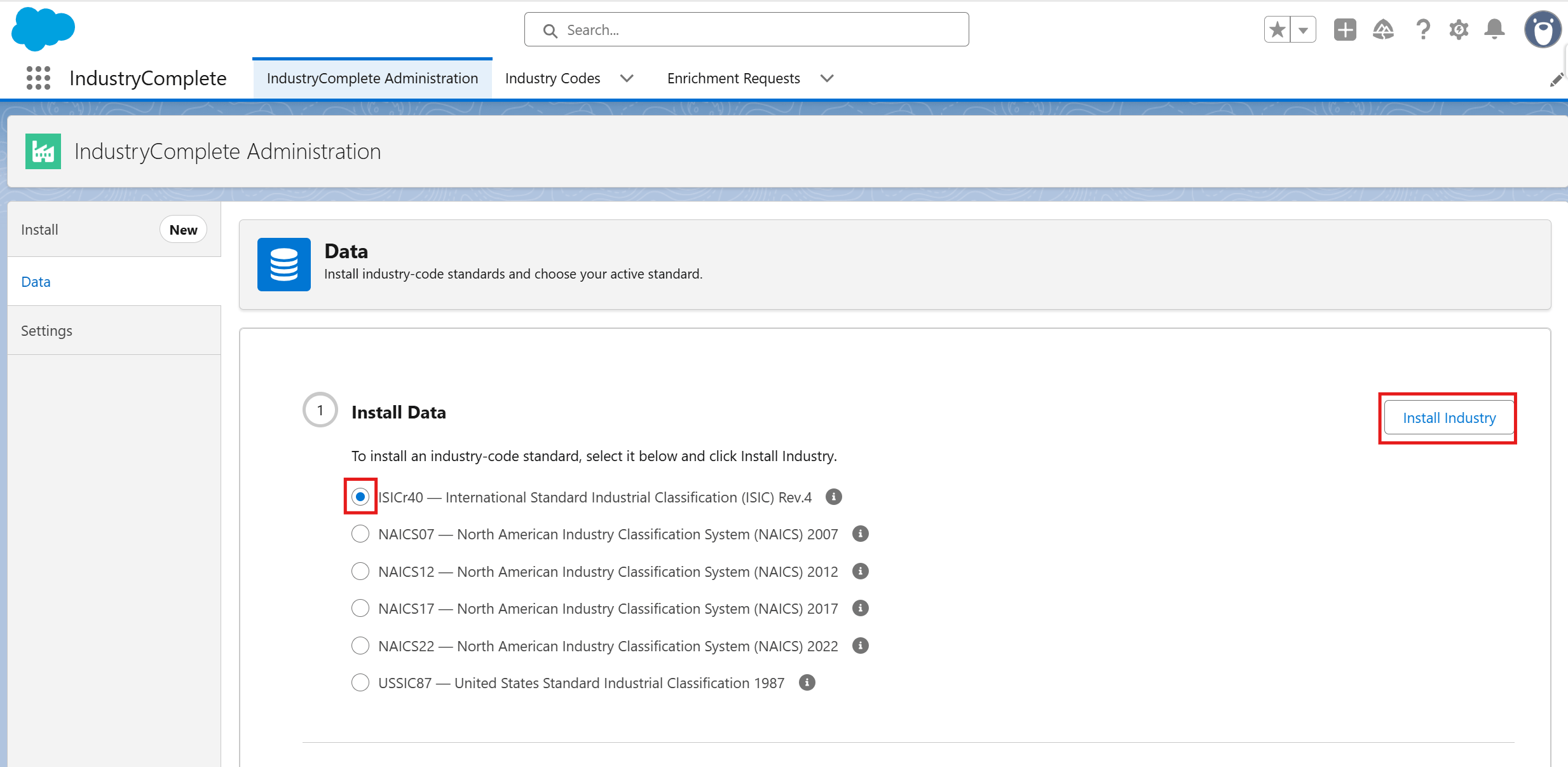
- Go to the Data tab.
- Select the standard you want to install, for example:
- NAICS22 - North American Industry Classification System (2022)
- ISICr40 - International Standard Industrial Classification (Revision 4)
- Or another classification system supported by your IndustryComplete package
- Click Install Industry, and wait for the progress dialog to complete.
- Repeat steps 4-5 for any additional standards you want installed.
Choosing Your Active Standard
Once at least one standard has been installed:
- Still on the Data tab, find the Select an active standard dropdown (only installed standards appear here).
- Select your preferred active standard.
- Click Save.
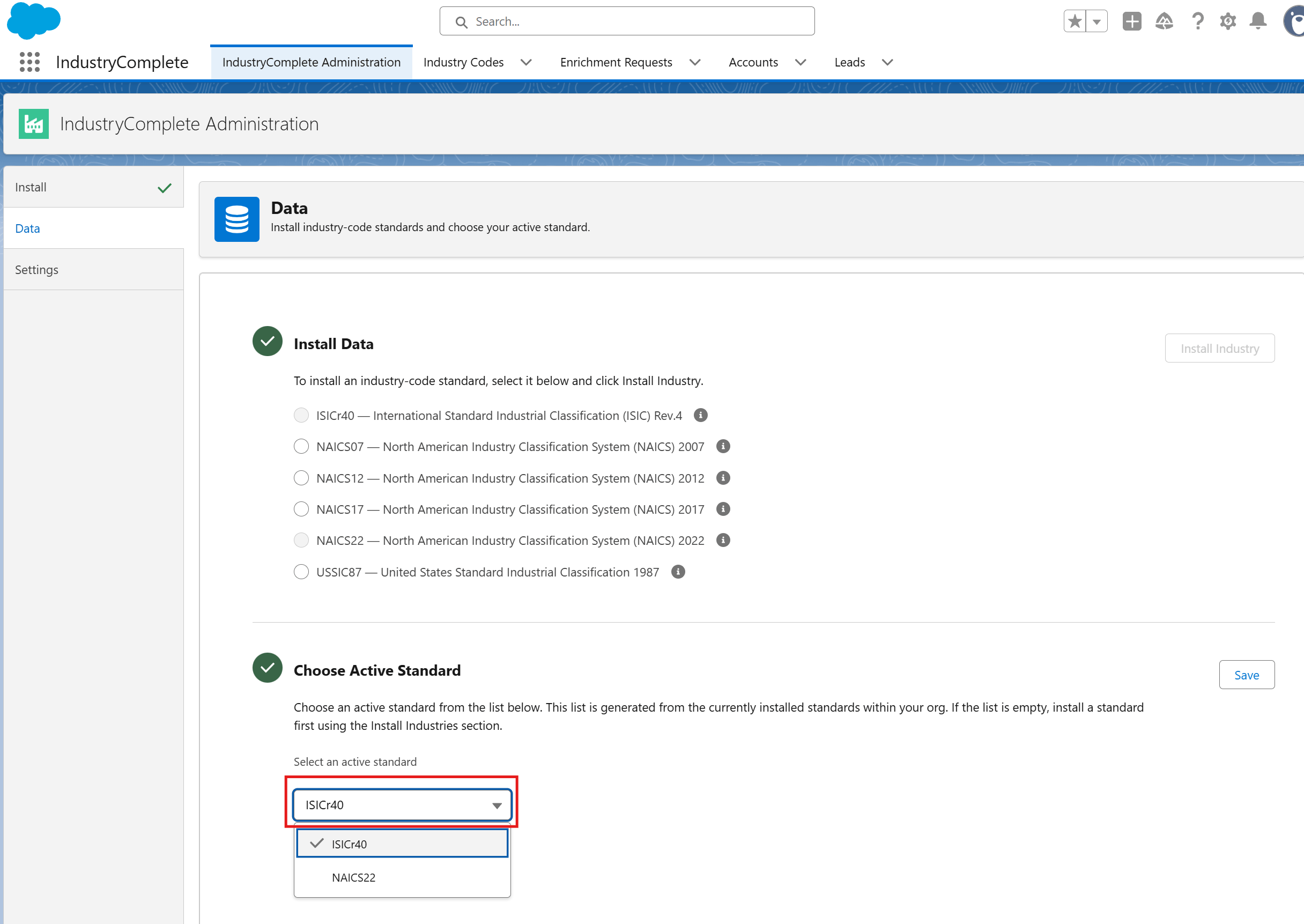
Note: Only industry codes from the active standard can be used for AI enrichment or manual entry. Installing more than one standard is intended to support migration: for example, if your org has mapped records to NAICS17 and wants to move to NAICS22, you can leave the existing NAICS17 codes in place on those records while switching the active standard to NAICS22 for future enrichment and entry.
What Happens Next
Installation may take several moments to complete depending on the size of the dataset you selected. A progress dialog shows how many records have been processed. Once complete, the standard is marked as installed and can no longer be re-installed from the same option.
Note: This step requires the IndustryComplete Admin User Permission Set. If you don't see the installation options, confirm that this Permission Set is assigned to your user.