Permission Set Assignments
Overview
Permission Sets control access to IndustryComplete features. Three Permission Sets need to be configured: two packaged ones for standard and admin users, and a custom one for External Client App access.
To streamline the setup, we'll start by creating the custom Permission Set for External Client App access.
About Permission Sets
Three Permission Sets are needed:
| Permission Set | Assign To | Purpose |
|---|---|---|
| IndustryComplete External Client App Access | All users | Enables External Client App access |
| IndustryComplete Standard User | All users | Provides standard feature access |
| IndustryComplete Admin User | Admin users only | Grants administration and configuration rights |
Note: The admin Permission Set should only be assigned to users who need to manage IndustryComplete configuration, such as installing industry codes.
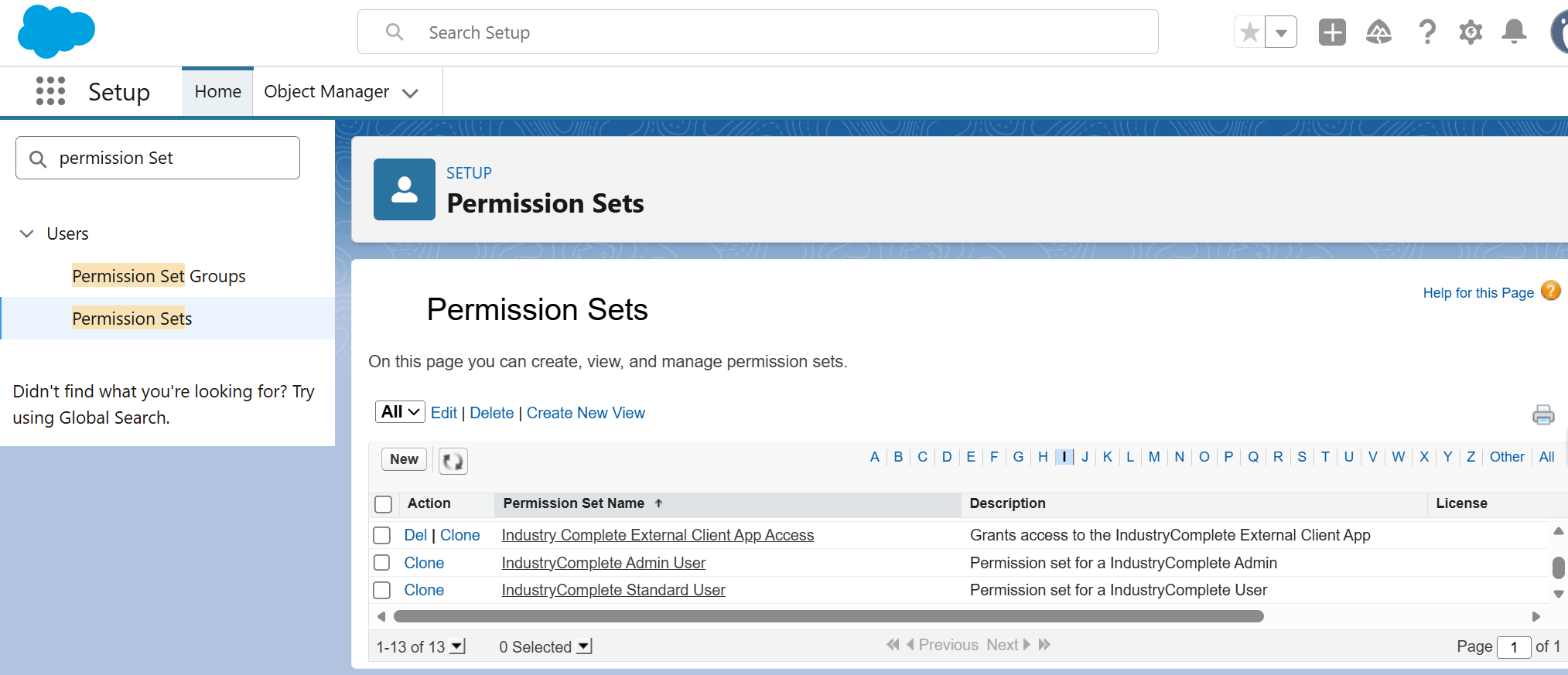
Step 1: Create a Custom Permission Set
A custom Permission Set is required for External Client App access.
- Navigate to Setup > Permission Sets.
- Click New.
-
Enter the following details:
Field Value Label IndustryComplete External Client App AccessAPI Name IndustryCompleteExternalClientAppAccessDescription Grants access to the IndustryComplete External Client App -
Click Save.
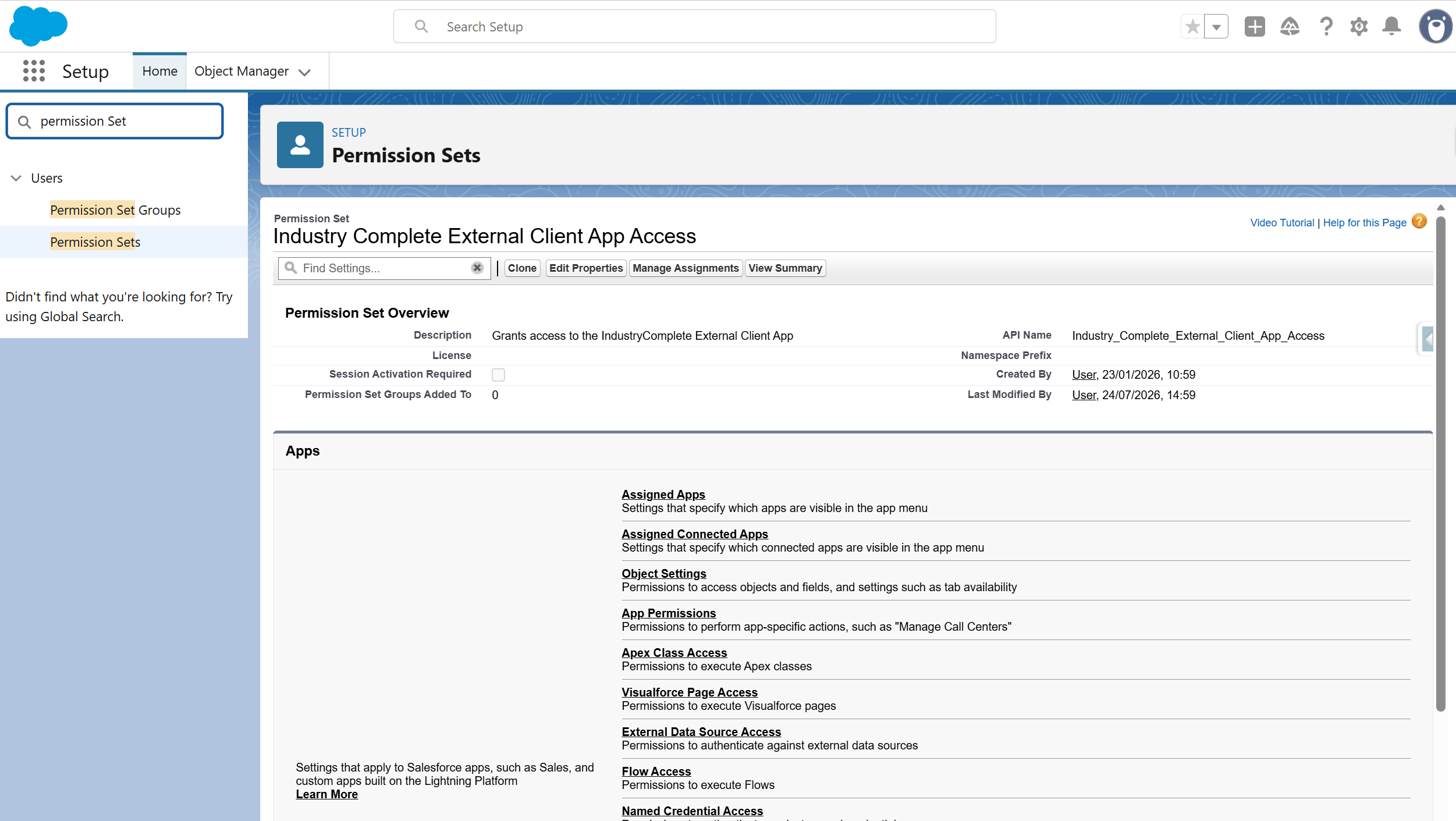
Step 2: Assign Permission Sets to Users
- Navigate to Setup > Permission Sets.
- For each Permission Set (the three listed above):
- Click the Permission Set name.
- Click Manage Assignments.
- Click Add Assignments.
- Select the users who need this permission.
- Click Assign.
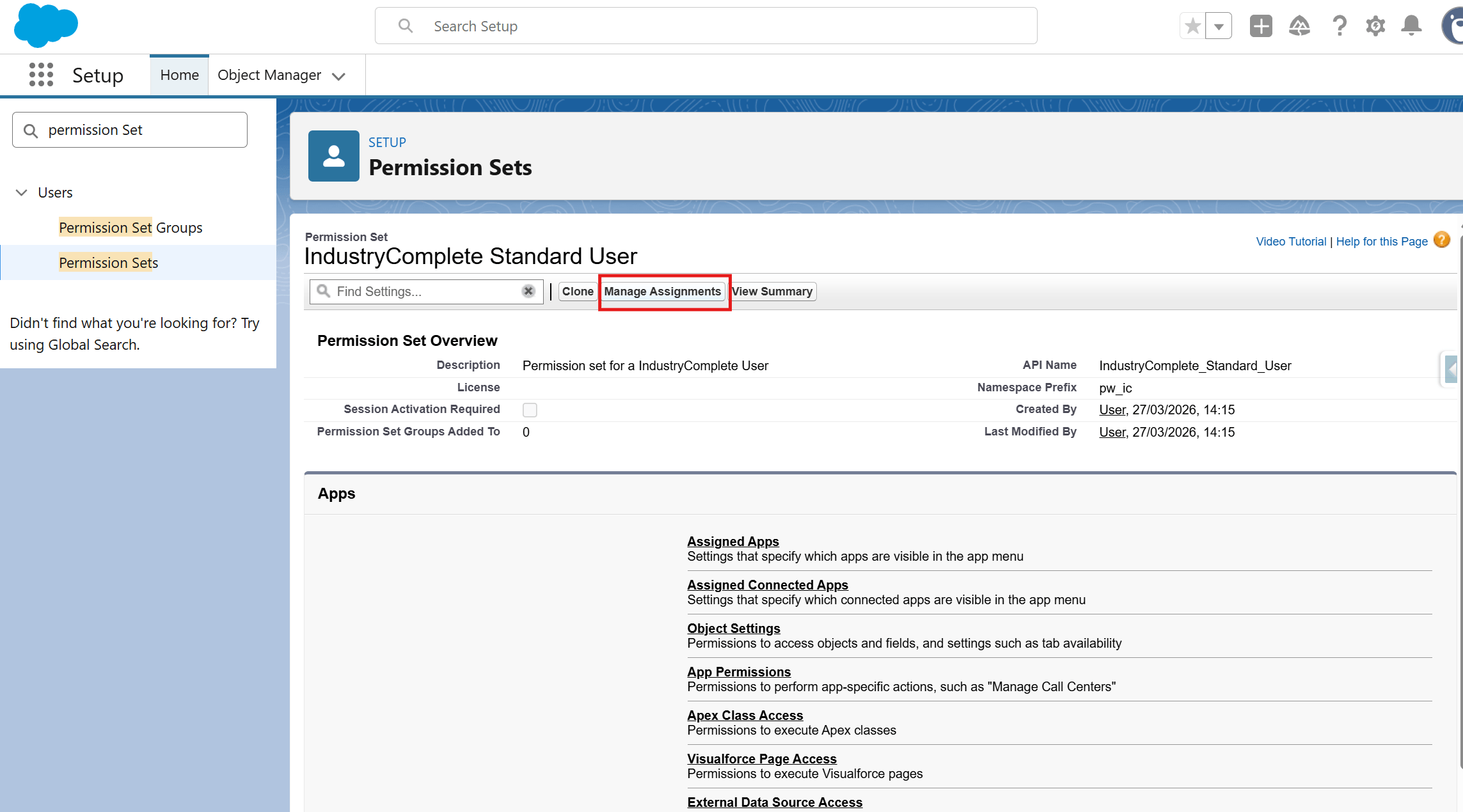
Assignment Guide
- IndustryComplete External Client App Access → Assign to all users.
- IndustryComplete Standard User → Assign to all users.
- IndustryComplete Admin User → Assign to admin users only (typically just yourself initially).